

TradeCopier
Help Guide
Tradovate Connection
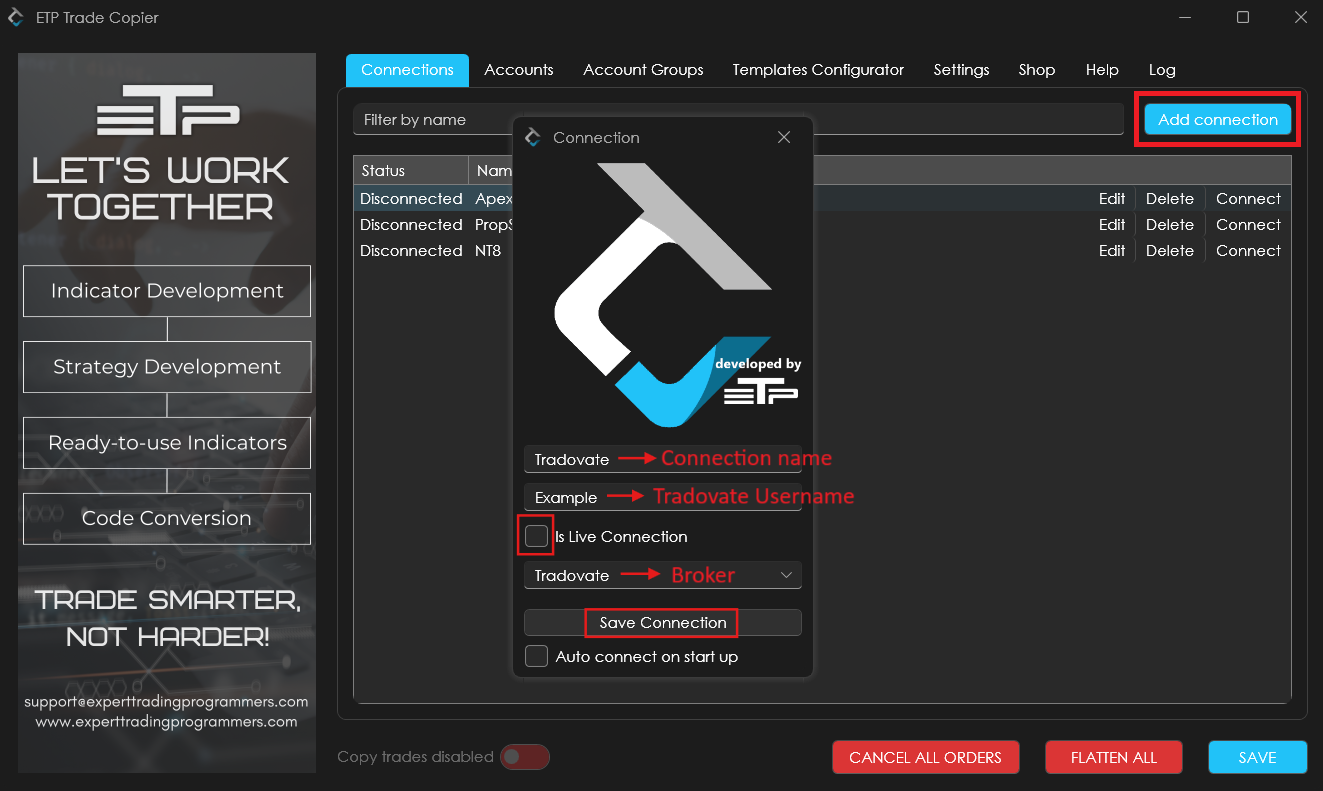
Open the ETP Trade Copier and click on ‘Add Connection’ and fill in the following details as directed.
a. Custom Connection name – Traders can enter any Connection name as per their preference.
b. Username – Traders must enter the same username as they have in their Tradovate Profile.
c. Broker – Select ‘Tradovate’ from the broker list and save the connection.
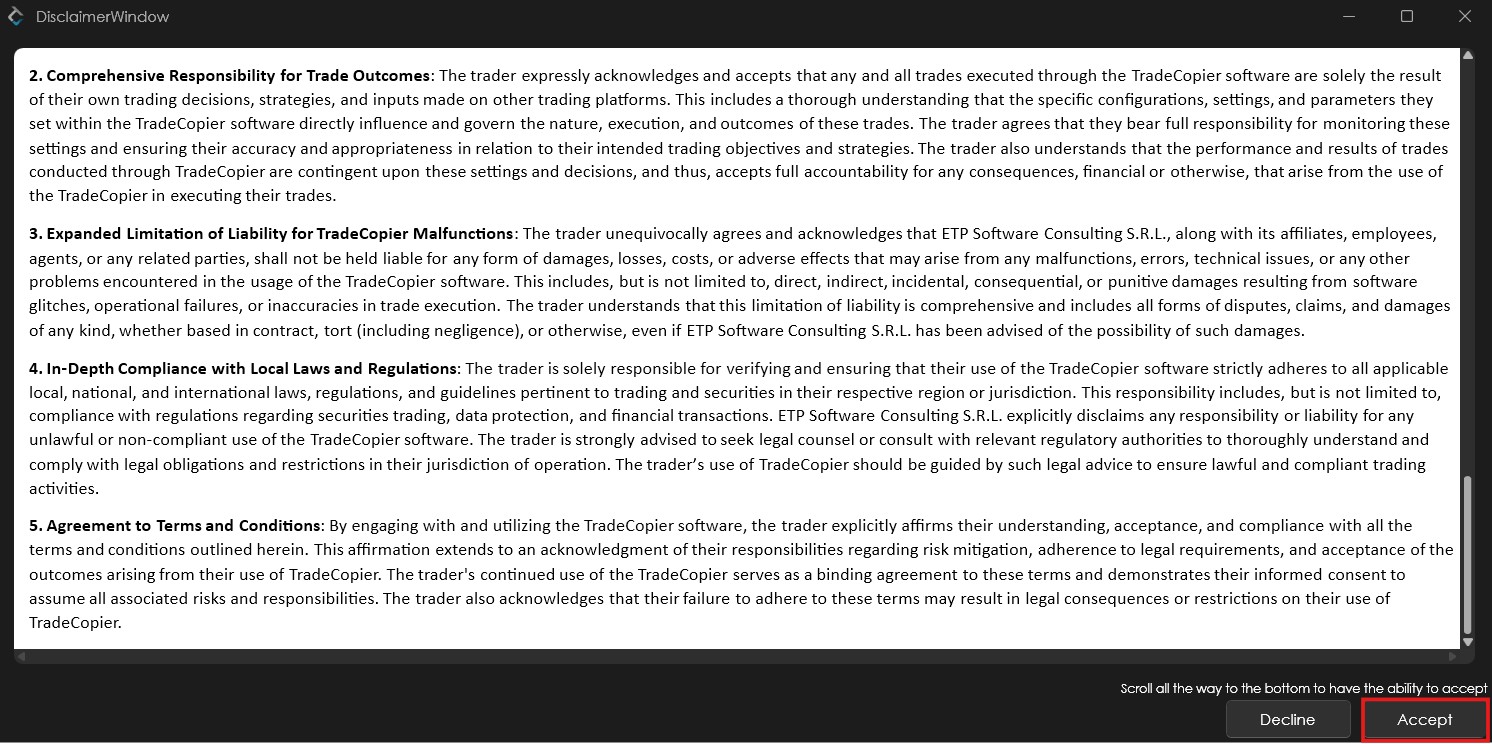
Once saved, a disclaimer window will appear containing our platform’s Risk Disclosure Statements and Terms and Conditions. You must accept these terms before the Trade Copier can be connected. Please scroll down and accept the conditions to proceed.
Important points to note while creating Tradovate connection:
1. Username Match:
Make sure the username entered in the ETP Copier exactly matches your Tradovate username.
2. No Password Required:
You do not need to enter a password when setting up the Tradovate connection. Simply enter the connection name, your username, and select ‘Tradovate’ as the broker.
3. ‘Is Live Connection’ Option:
This option will appear during setup. Enable it only if you’re connecting a live account with real funds. Do not enable it for prop firm or demo accounts.
How to link Tradovate and ETP Copier?
Follow the steps below to connect your Tradovate account with ETP Copier.
Step 1: In the ETP Copier, create a direct Tradovate connection as described in the above question.
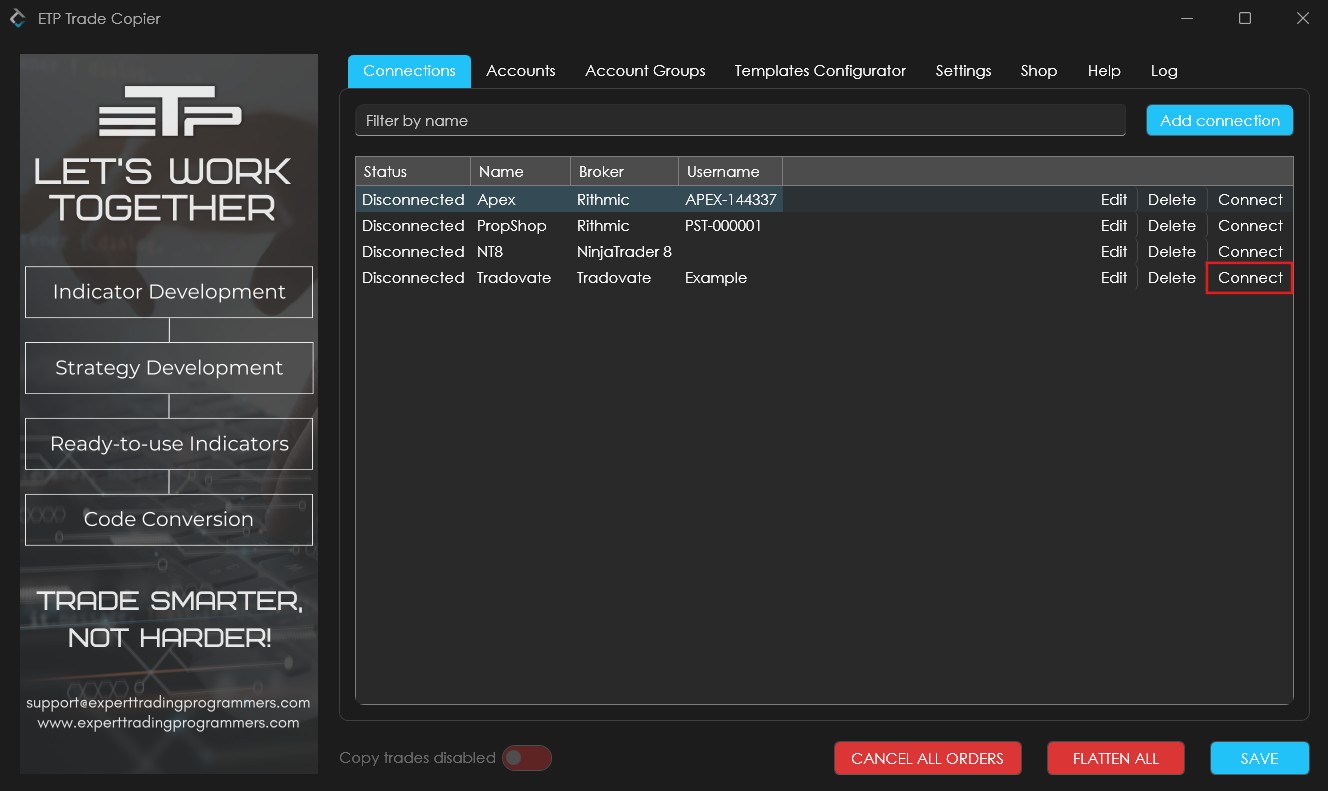
Step 2: Once created, click on ‘Connect’ to initiate the connection.
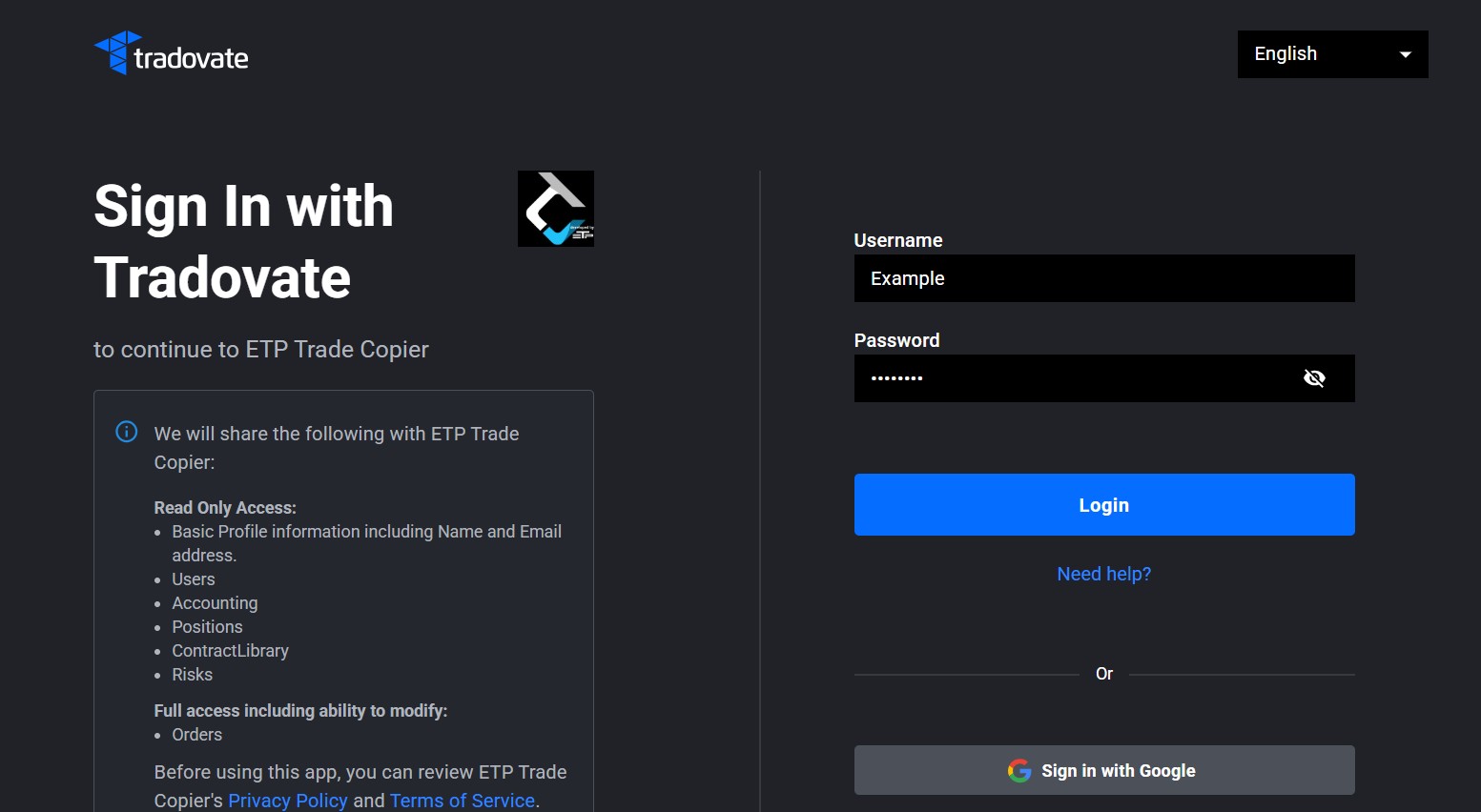
Step 3: You’ll be redirected to your browser to authenticate the connection. Enter your Tradovate username and password when prompted, then log in.
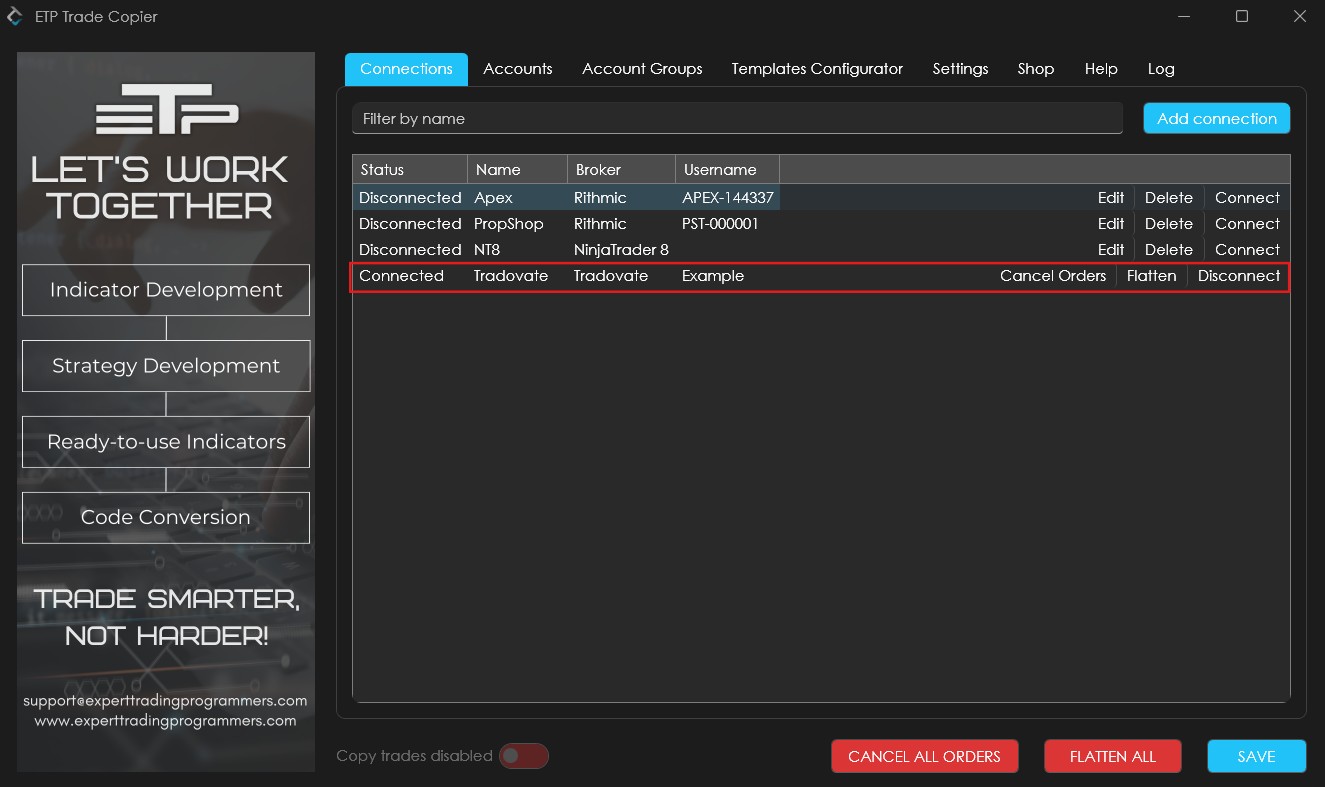
Step 4: Once successfully logged in, a new tab will open with the message: “Authentication complete. You may close this window.” This confirms the connection is successful. You can now check the Connections tab in the ETP Copier to ensure Tradovate is connected.
Why can’t I see the open P&L of my Tradovate accounts on the ETP Trade Copier?
Tradovate does not allow access to open P&L data unless the platform is directly connected to market data. This is different from how other trading platforms operate. As a result, the ETP Copier cannot display open P&L for Tradovate accounts. However, you can still use these accounts for copy trading and view the open P&L directly on the Tradovate terminal.