TradeCopier
Help Guide
Account Groups Tab
The “Account Groups” tab allows you to create and manage multiple account groups, enabling multiple leader accounts and multiple follower accounts. Additionally, you can assign trading templates to an entire group.
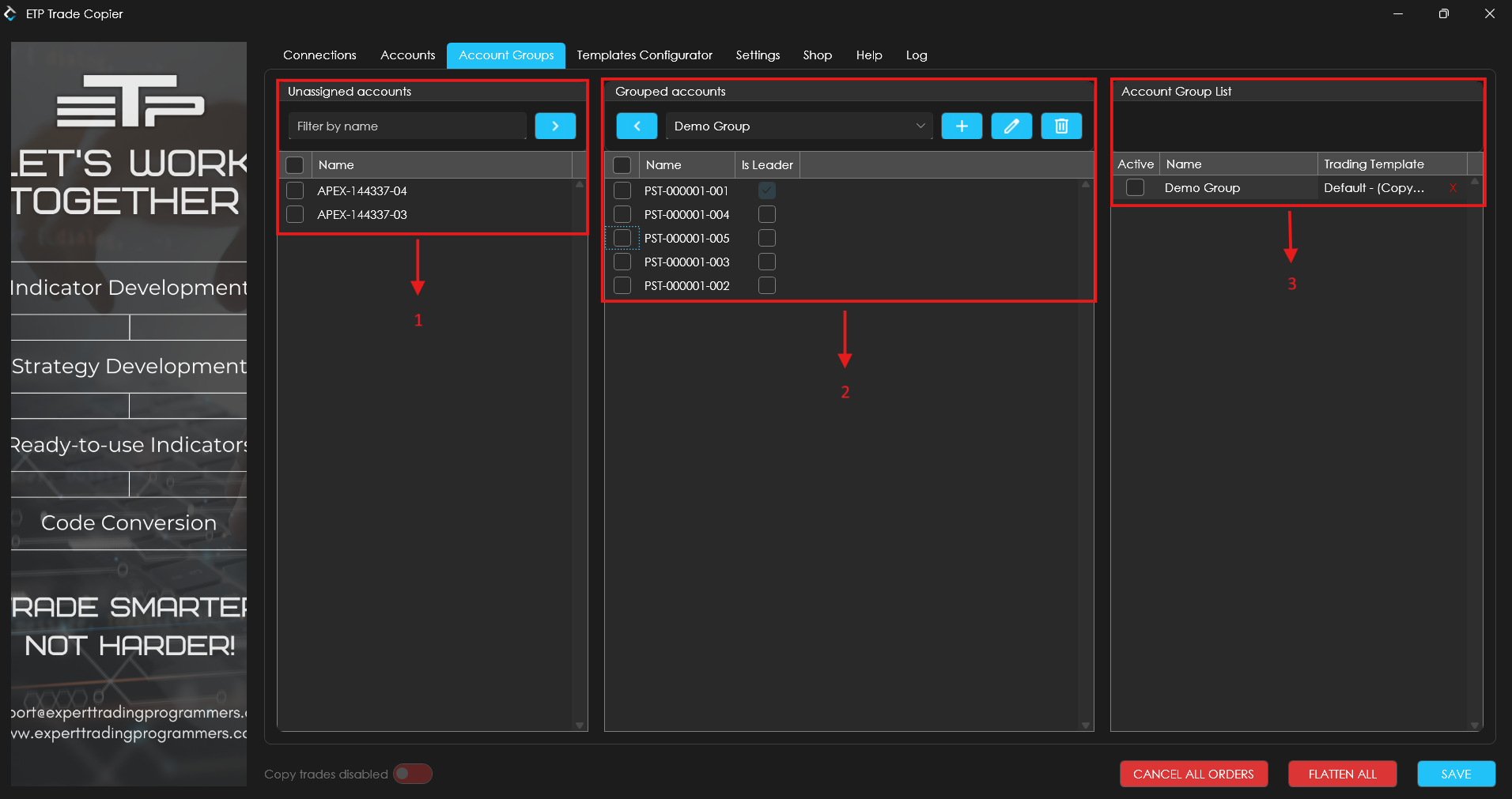
Overview of Account Groups tab:
1. Unassigned accounts: Displays all accounts that are not currently part of any group.
Note: If you enable the “Allow Accounts to be part of multiple groups” option in the Settings tab, accounts will still appear in the Unassigned Accounts section, even if they have already been added to another group.
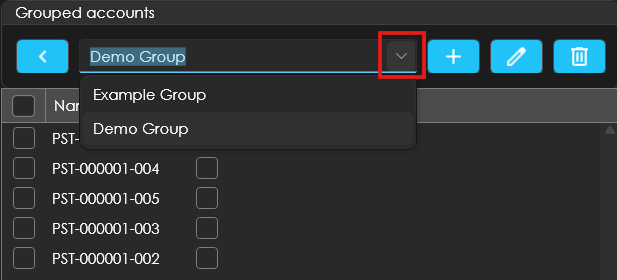
2. Grouped accounts: Shows the accounts within the selected group. Use the dropdown menu to choose and view accounts in a specific group.
3. Account Group List: It will display all the groups you’ve created so far.
a. Active column: You can check the tickbox adjacent to the Group to activate the Account group for trading.
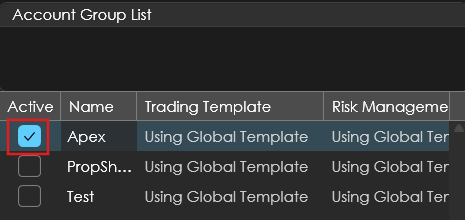
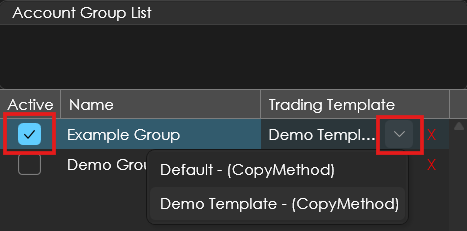
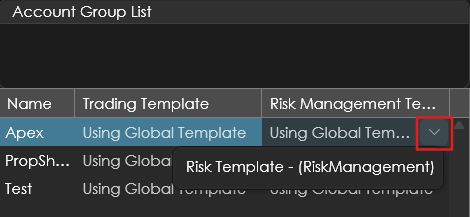
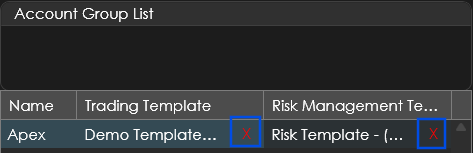
Disclaimer: To remove any Trading or Risk Management template, click on the ‘X’ button.
How to Create, Edit, and Delete Groups:
Follow the steps below on how to create a group, add/remove accounts from the group, assign a leader account for the group, edit group names, and delete groups:
1. Group Creation: Click the ‘+’ icon under Grouped Accounts, enter a group name, select a leader account, and click “Create Group”.

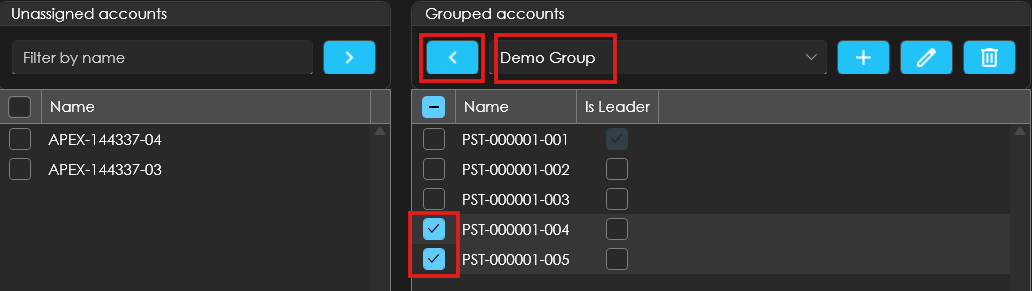
2. Add accounts to a group: In Unassigned Accounts, select the checkboxes for the accounts you want to add, then click the ‘>’ button. Ensure the correct group is selected in the dropdown.
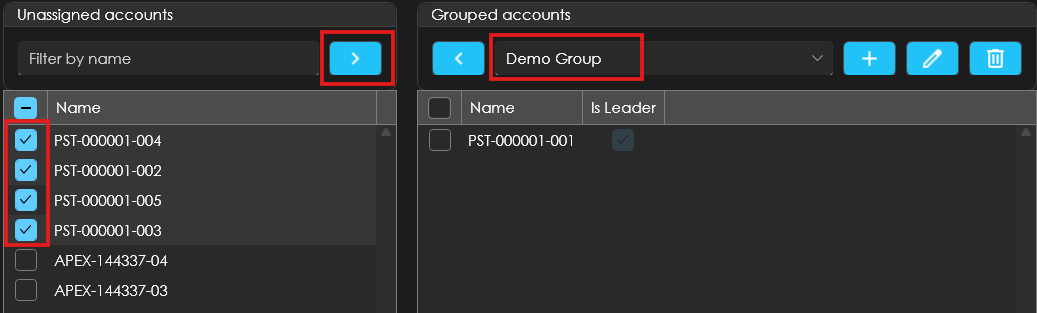
3. Remove accounts from a group: In the selected group, check the accounts you want to remove, then click the ‘<’ icon. These will move back to Unassigned Accounts.
4. Assign a leader account for a group: To assign a leader account, there are two ways to do that:
a. When creating the group, assign a leader account directly.
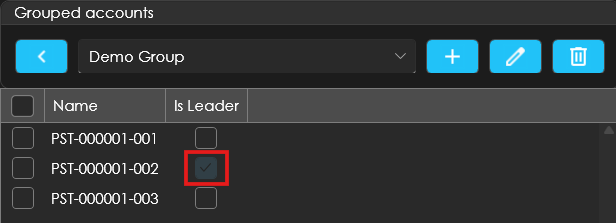
b. To change the leader later, check the box under the ‘Is Leader’ column next to the new leader account.
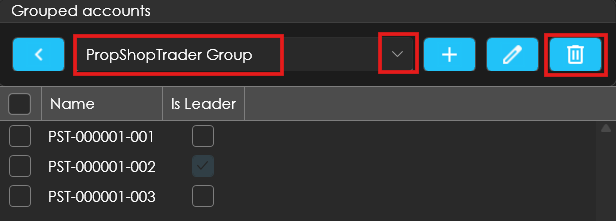
For Reference: While creating the group, we assigned account: PST-000001-001 as a leader, but if we want to change it to PST-000001-002, we can simply check the ‘Is Leader’ checkbox next to PST-000001-002.
5. Edit Group name: To edit a Group name, click the pencil icon, enter the new name, and click Rename Group.

6. Delete Group: To delete a group, select the group you wish to delete from the dropdown menu and click on the delete button. Once clicked, a confirmation window will pop up, asking for confirmation whether to delete. You can choose ‘Yes’ to delete.